
Build a workflow
Open any workflow and you get the visual builder: a canvas of connected steps, a palette of node types on the right, and an AI draft bar on top. This page walks you through building one from scratch — and turning it on.
 The builder — steps on the canvas, the palette and settings in the right rail.
The canvas
The canvas is the workflow. Each box is a step (a "node"). Click any node type in the right rail to drop it on the canvas, drag from one node's handle to another to connect them, and click a node to configure it. Auto-arrange tidies the layout at any time, and nothing is stored until you press Save.
The trigger node is already on every canvas; the palette groups the other 23 step types by job:
- Messaging — email, SMS, notify your team
- Voice — AI call, voicemail drop
- Meetings — send a self-book link, enroll in a webinar, webinar reminder
- Logic — branch, wait, add to another workflow
- CRM — create opportunity, move stage, tag, update field, math/score, round-robin assign
- Commerce — request a payment (secure Stripe link)
- AI — run an AI instruction, or hand the deal to Autopilot (Autopilot runs on Pro and Agency plans)
- Integrations — webhook, Slack message
- Tasks — create a follow-up task for a human
Every step has a label (your name for it) and a wait before this step — a plain delay like 0 min, 2 hours, 2 days, or 1 week. If the engine can't read a delay you typed, it waits 1 day. The Wait node can also hold until business hours, a set weekday and time, a calendar date, or a date stored on the contact (renewal date, install anniversary). Full options for every node: Node reference.
Texts and AI calls queued by a workflow land in your Approvals inbox before anything goes out, and every send passes consent checks. The one exception: compliant speed-to-lead calls can auto-approve when live dialing is enabled.
Branches
Most nodes have one output: the next step. A Branch node has two — Yes and No. It splits on engagement (opened, replied, booked), lead score, or any field on the contact or deal, and each answer follows its own path.
You don't have to connect both. A branch (or any node) with nothing after it simply ends the workflow for contacts who reach that point. That's a normal way to finish a path — not an error.
In any message field you can write {{first_name}}, {{company}}, or {{booking_link}} and it's filled in per contact. The full token list is in Personalization variables.
Pick the trigger
Click the ▶ trigger node — the first node on every canvas. The "Starts when" dropdown sets the event that enrolls contacts: a new lead arrives, a form is submitted, a deal stalls, an appointment is booked, and more. See the Trigger reference for every event.
Some triggers take an instance filter so the workflow fires only for one specific thing — one form, one pipeline stage, one product, one tag, or one channel. Leave the filter blank and the workflow fires on every instance of the event.
Choosing the incoming webhook trigger shows your workflow's private catch URL after you save — POST a contact to it from Zapier, Make, or any app, and the contact is created and enrolled.
The trigger saves with its own Save trigger button, separate from the canvas Save.
Workflow settings
Click an empty spot on the canvas and the top of the right rail shows Workflow behavior — settings that apply to the whole workflow. Press Save to keep them.
- Stop when the contact replies — on by default. The moment a contact replies, the run halts and the conversation is yours (or Arianna's). Turn it off for long-term nurture, so one reply doesn't end a 90-day drip. Every individual send still passes its own consent and frequency checks either way.
- Exit early when… — goal exits. Tick They book a meeting or They make a purchase and the run stops the moment that happens. The engine also supports exiting when a contact gains a tag or when a field matches a value — the pre-built niche suites use these. Goals are checked before every step, so nobody gets a "just checking in" text the morning after they booked.
If a contact texts STOP, every workflow halts for them — nurture mode included. You cannot turn this off; it's a compliance rule, not a preference. It's triggered by an actual opt-out, so contacts you only reach by email keep nurturing normally.
Turn it on
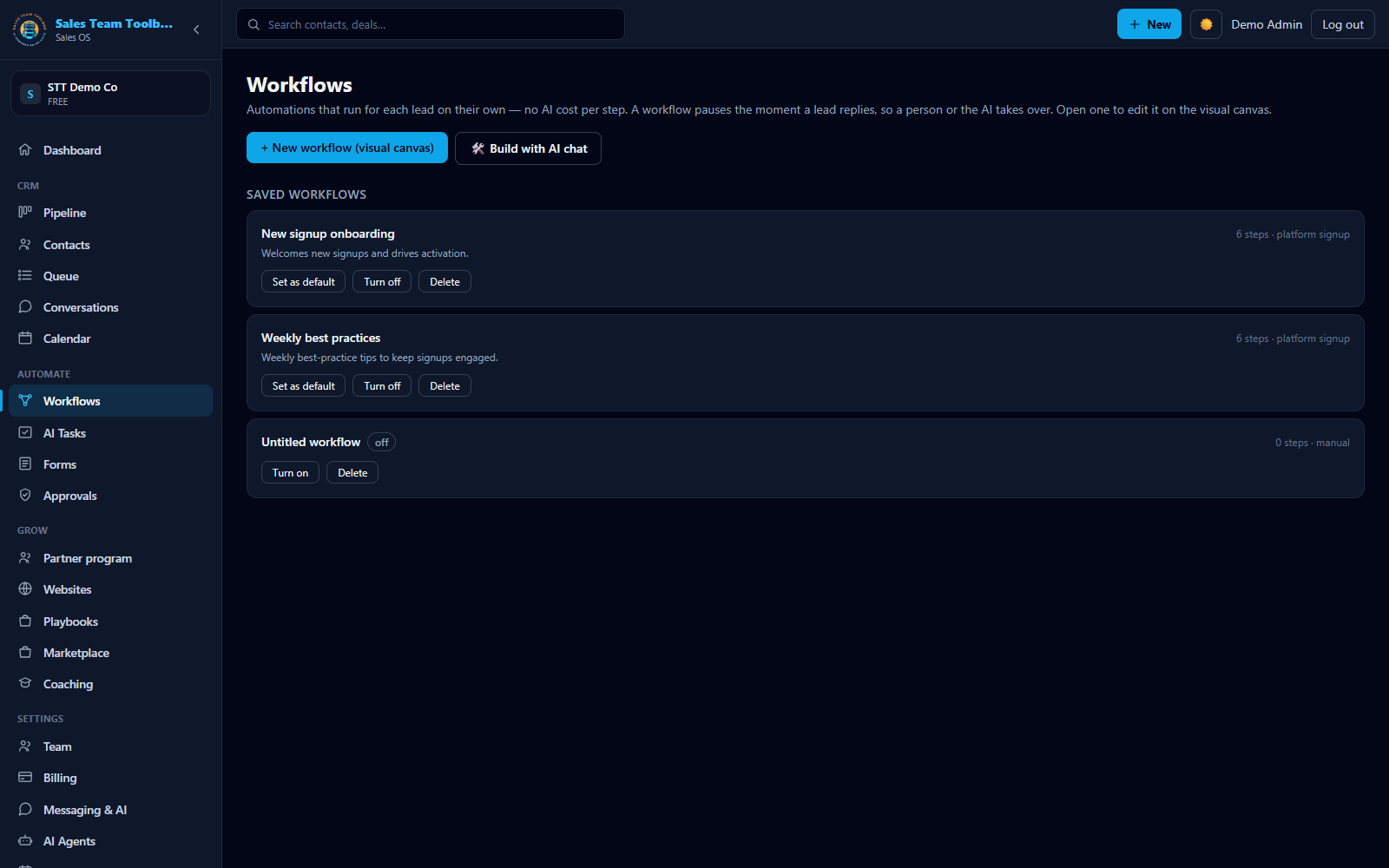
New workflows start off — you'll see an "off" badge on the Workflows page. Nothing runs and nobody enrolls until you press Turn on. That means you can build, save, and revise freely; going live is always a deliberate step.
Optionally, mark one workflow Set as default so every new lead enrolls in it automatically.
Watch it run
The Runs button on the builder toolbar opens the run history: who's enrolled, which step they're on, when the next step fires, and how each finished run ended (completed, replied, opted out).
Every run also logs a short note — which step ran, what it did, and why something was skipped or deferred — plus a timeline of the actual emails and texts. When you wonder "why did this stop?", the answer is written down.
Let AI draft it
Don't want to start from a blank canvas? Use the AI draft bar at the top of the builder. Describe the campaign in plain English — up to 800 characters:
Describe it
For example: "Win back leads that went cold 30 days ago: email, then if no open, text, then wait and try again."
Generate
The drafter designs the graph — trigger, messages, branches, waits — using 18 of the 24 node types. Drafts stay a reviewable size, about 4–12 nodes, and are validated before they can be saved.
Review and save
The draft replaces what's on the canvas, so use it on a new workflow. Edit any node, then press Save. Nothing sends until the workflow is saved and turned on.
Six node types are manual-only — the drafter never adds them: add to workflow, request payment, Slack, webhook, enroll in webinar, and webinar reminder. Drop those in by hand.
Texts, AI calls, and AI steps are metered from your prepaid usage wallet — the AI drafter is too. Most workflow steps send the messages you wrote and carry no AI charge. See Billing & usage.
Next steps
Ready to build? Drop a few steps on the canvas — or describe the campaign and review the draft.
Open Workflows